

AI Playbook Builder is the fastest way to turn a trading idea into a structured TensorAlgo Playbook.
Describe the setup you have in mind in normal language, choose the market and direction, and let TensorAlgo assemble the idea from supported Strategy Blocks. Instead of starting with every condition and setting manually, you begin with a complete first version that you can review, adjust, save, and activate when you are happy with it.
It is especially useful when you already know what you want to trade but want help translating that idea into clear, consistent Playbook rules.
What AI Playbook Builder does for you
A single build can give you:
- Playbook basics such as a suggested name and description;
- one structured strategy built from supported TensorAlgo capabilities;
- the direction and main setup conditions;
- trade-setting defaults that match the generated idea;
- validation results;
- an activation preview before anything goes live.
You stay in control. The builder does not save or activate the result without your approval, so you can inspect the generated Playbook first and change what you want.
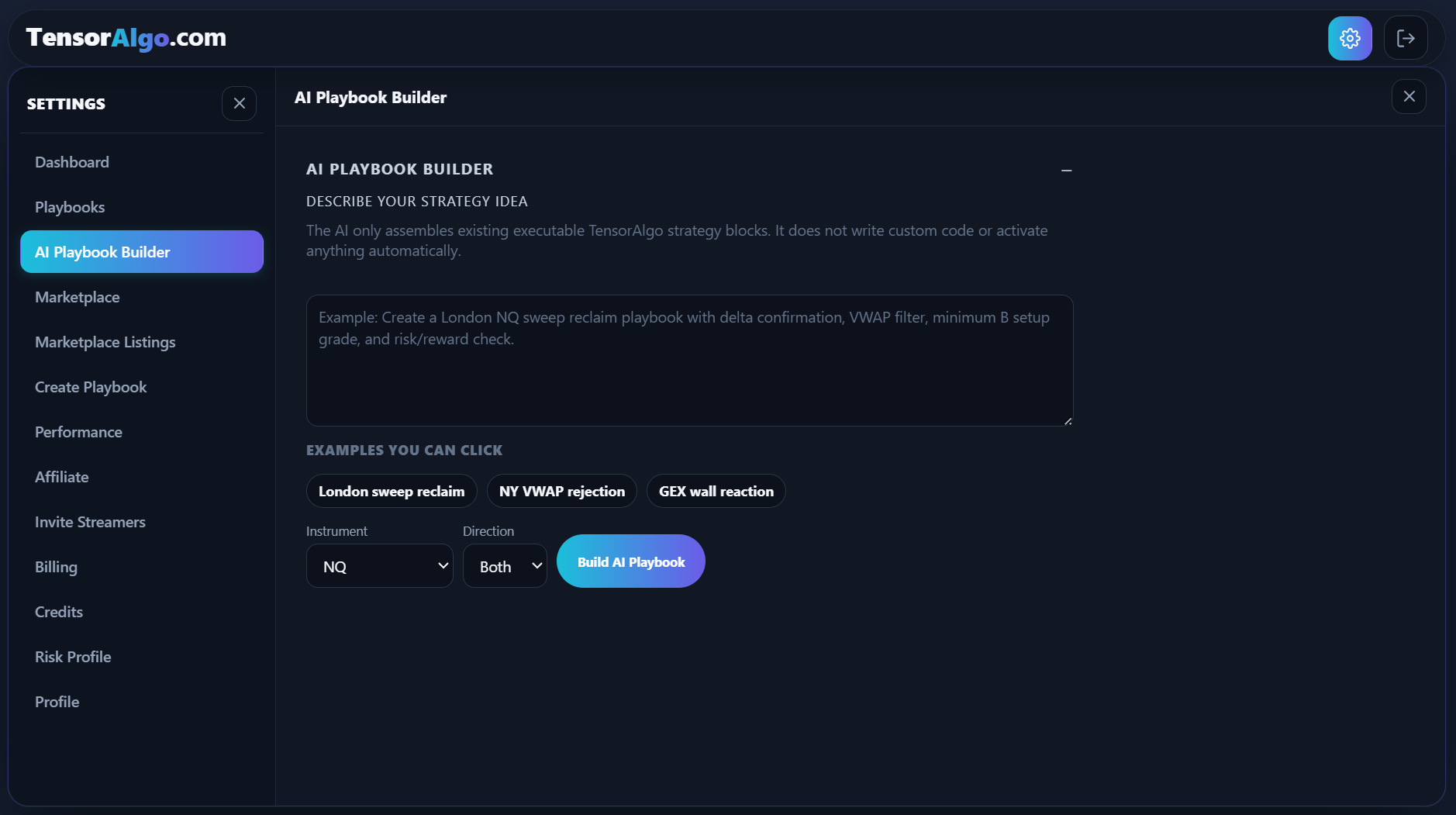
Step 1: Describe the strategy you want
- Open Settings → AI Playbook Builder.
- Find Describe your strategy idea.
- Write the setup in the same way you would explain it to another trader.
You do not need to write code or learn a special syntax.
A useful prompt can mention:
- the market or instrument;
- long, short, or both directions;
- the session or timing you care about;
- the main setup or sequence;
- confirmation you want to see;
- important location or market-context filters;
- setup-quality or risk/reward preferences.
For example:
Create a London NQ sweep-and-reclaim Playbook with delta confirmation, a VWAP location filter, minimum B setup grade, and a risk/reward check.
You can also start from an example prompt and make it your own.
Step 2: Choose the market and direction
Select the Instrument and Direction, then make sure the written idea matches those choices.
The direction can be long, short, or both. The instrument can still be adjusted while you review the generated Playbook; after the Playbook is saved, its instrument becomes locked.
Step 3: Build your Playbook
Select Build AI Playbook.
TensorAlgo interprets the request, maps it to supported Strategy Blocks, creates the Playbook basics and trade settings, builds one supported strategy, runs validation, and prepares an activation preview.
The request uses AI Credits. The current AI Playbook Builder charge is shown by the product when applicable; the verified configured price is 400 AI Credits per build.
If you want to try a different wording or direction after seeing the first result, update the prompt and use Rebuild AI Playbook.
Step 4: Review the generated strategy
The review is designed to make the result understandable before you save it. Check the Playbook name, instrument, description, tags, direction, logic mode, and the main conditions the builder assembled.
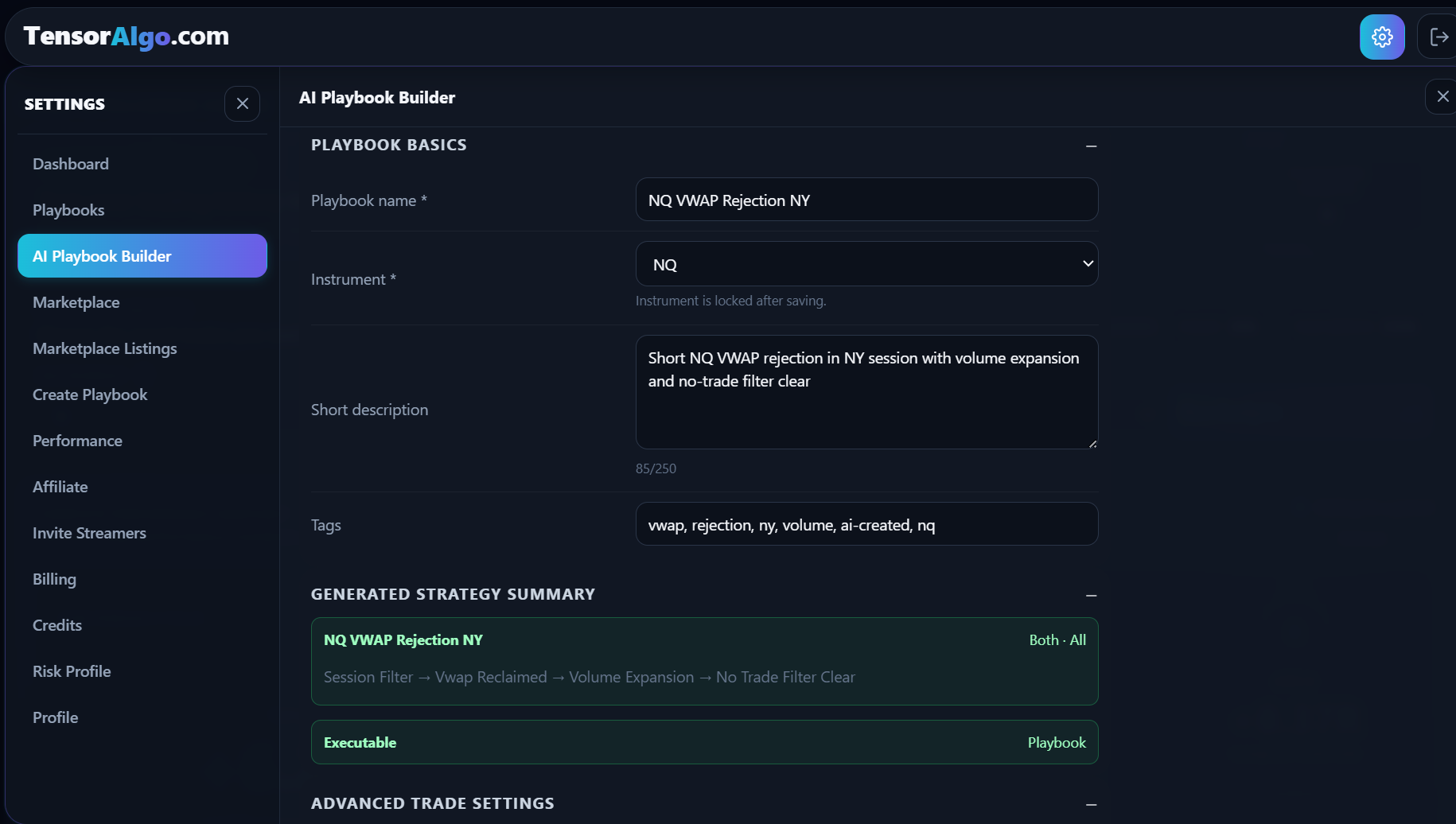
This is where AI Playbook Builder becomes more than a prompt tool: you can see how the idea was translated into TensorAlgo's supported strategy structure and decide whether it represents the setup you intended.
If the activation preview says Needs review before activation, the Playbook can still be saved. Correct the item shown by validation before activating it.
Step 5: Fine-tune the trade settings when you want to
For a quick start, the generated defaults give you a complete first version. When you want more control, open Review or adjust defaults under Advanced Trade Settings.
Depending on the generated Playbook, you can review settings such as:
- preferred minimum risk/reward;
- low risk/reward handling;
- take-profit count and close percentages;
- maximum target distance;
- entry-zone distance;
- stop-distance limits;
- minimum setup grade;
- break-even behavior;
- optional stop-management and trailing behavior.
You do not need to change every advanced setting. Use this area when you want the generated Playbook to match your execution preferences more closely.
Step 6: Save it your way
When the Playbook looks right, choose:
Save
Use Save when you want to keep the Playbook and continue reviewing or extending it later from Settings → Playbooks.
Save & Activate
Use Save & Activate when you are ready to run activation validation and activate the Playbook immediately if the checks pass.
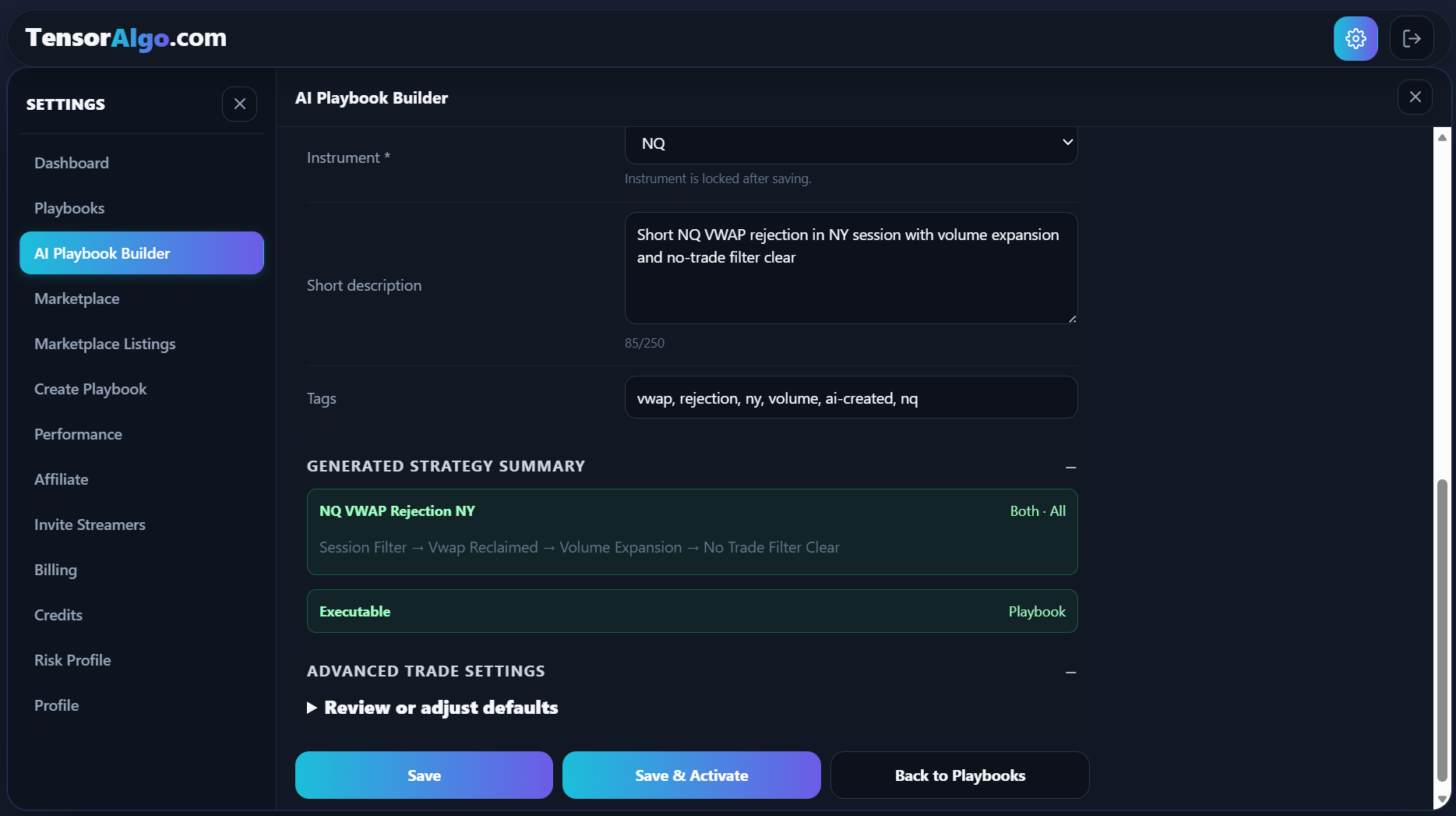
AI Playbook Builder creates the first supported strategy for you. After saving, you can open the Playbook again and add more strategies when your plan allows them.
A simple way to get more from the builder
Start with the trading idea rather than trying to describe every implementation detail. A strong prompt usually answers four questions:
- Where? Which market and session?
- What setup? What should happen first?
- What confirms it? What makes the setup worth considering?
- What quality bar? What should filter out weaker setups?
You can then use the generated review and advanced settings to refine the details.
Troubleshooting and limits
If a build or activation does not complete, check these items:
- the account has enough AI Credits or an applicable Platform Credit balance;
- the account has capacity for another saved Playbook;
- activation has available active-Playbook and active-strategy capacity;
- the generated strategy does not show an incomplete or invalid condition;
- the account is currently permitted to activate trading features.
AI Playbook Builder works with supported TensorAlgo strategy capabilities. It does not create arbitrary custom code or reveal protected Marketplace strategy logic. Generated rules should be reviewed before activation, and creating a Playbook does not guarantee profitable trading results.