

Manual Playbook creation is the path for traders who want direct control over how a strategy is structured and how a valid setup becomes a trade plan.
Instead of describing the idea to AI or starting from a template, you build the Playbook yourself from supported strategy and execution controls. TensorAlgo then validates the draft before activation.
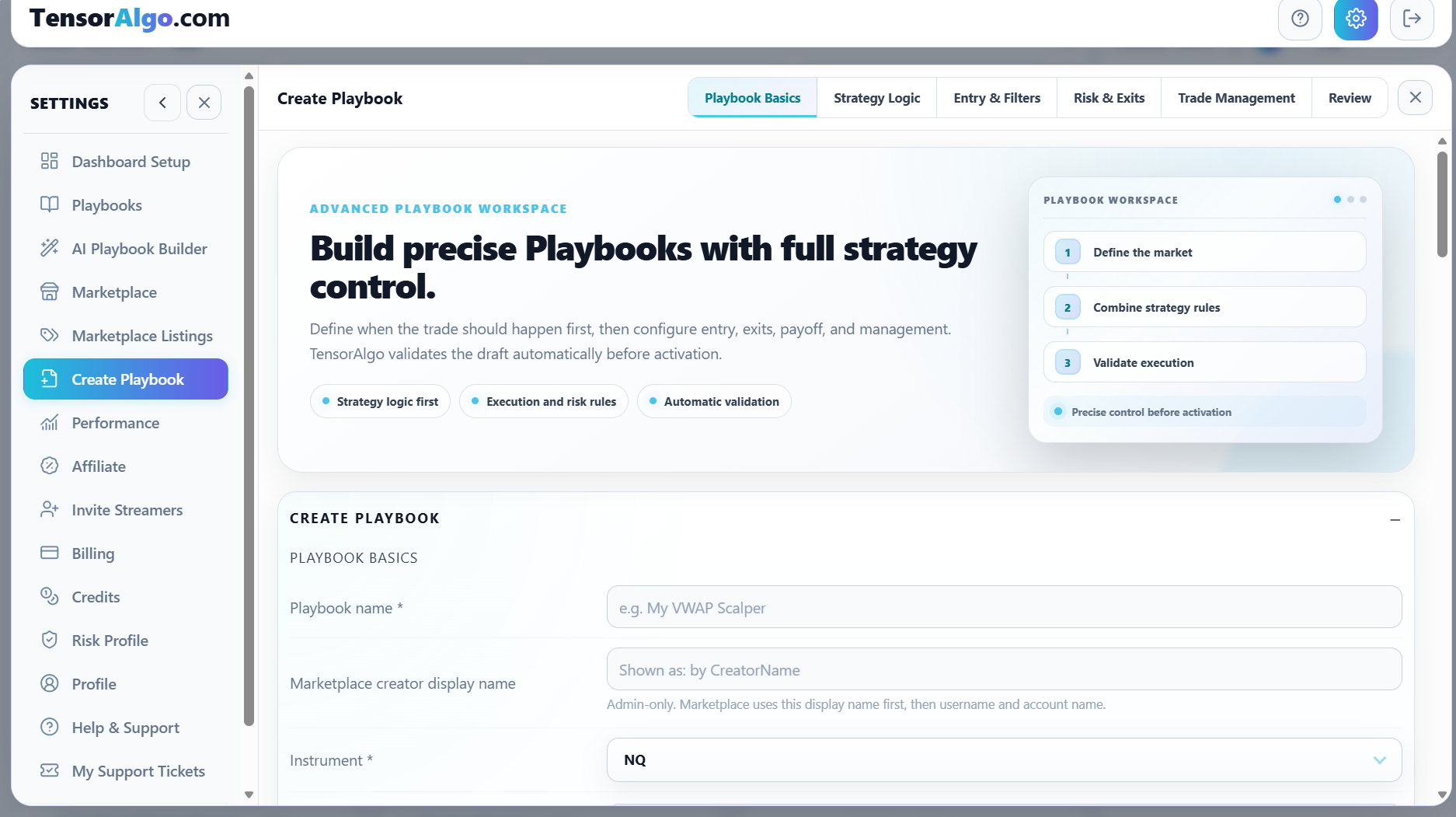
When manual building is useful
Build manually when you already know the setup you want and care about the exact structure—for example the order of conditions, the confirmations that should be present, the entry filter, the stop/target boundaries, or the way low risk/reward should be handled.
You can still use the same Playbook later with Trade History and Trade Intelligence Center. Manual building changes how the Playbook is created, not how its evidence fits into the rest of TensorAlgo.
Start the manual builder
- Open Settings → Create Playbook.
- In Choose how you want to start, select Build Manually.
- Give the Playbook a clear name.
- Choose the supported instrument.
- Continue through the builder tabs.
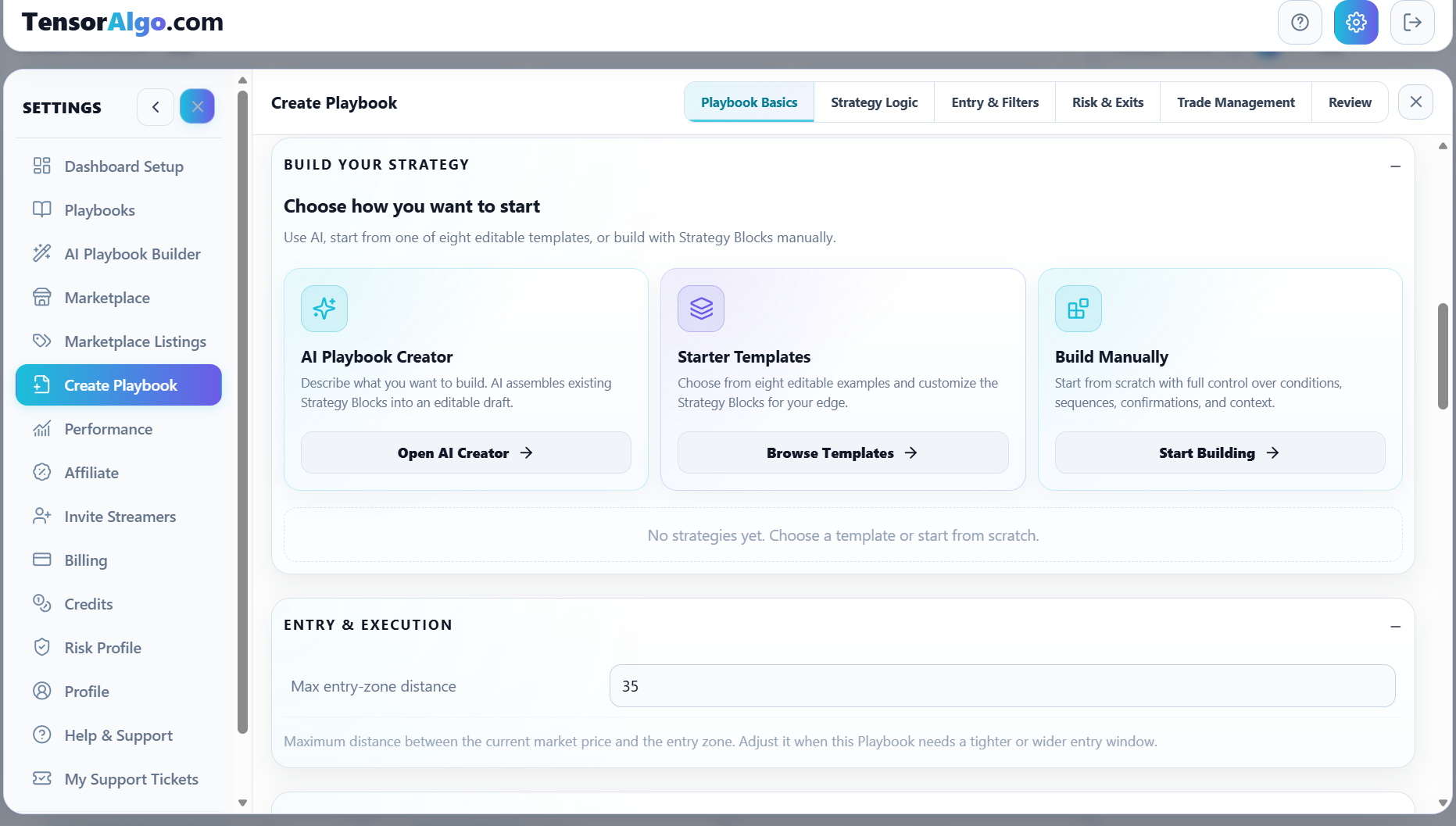
The builder is organized into six sections: Playbook Basics, Strategy Logic, Entry & Filters, Risk & Exits, Trade Management, and Review.
1. Playbook Basics
Use Playbook Basics for the identity and Playbook-level starting configuration. A clear name helps later when the Playbook appears in Trade History, analytics, or Marketplace workflows.
The selected instrument is central to the Playbook. Build the strategy for the market the Playbook is intended to evaluate rather than treating the instrument as a label added at the end.
2. Strategy Logic
Add the supported Strategy Blocks that describe the setup.
Depending on the available blocks, strategy logic can represent conditions, sequences, confirmations, and market context. The strategy summary helps you see the structure you assembled instead of relying on the individual controls alone.
Keep the strategy readable. If the setup requires a specific order—such as one event followed by a reclaim and then confirmation—use the supported structure that represents that sequence rather than adding unrelated filters simply to make the Playbook look more complex.
3. Entry & Filters
Entry and filter controls narrow how a strategy qualifies for a usable trade plan.
Use these settings to express boundaries that are genuinely part of the trading idea. For example, an entry-zone distance can prevent a valid strategy pattern from producing a plan when price is already too far from the intended location.
4. Risk & Exits
Risk & Exits controls how the Playbook should handle stops, targets, and risk/reward preferences.
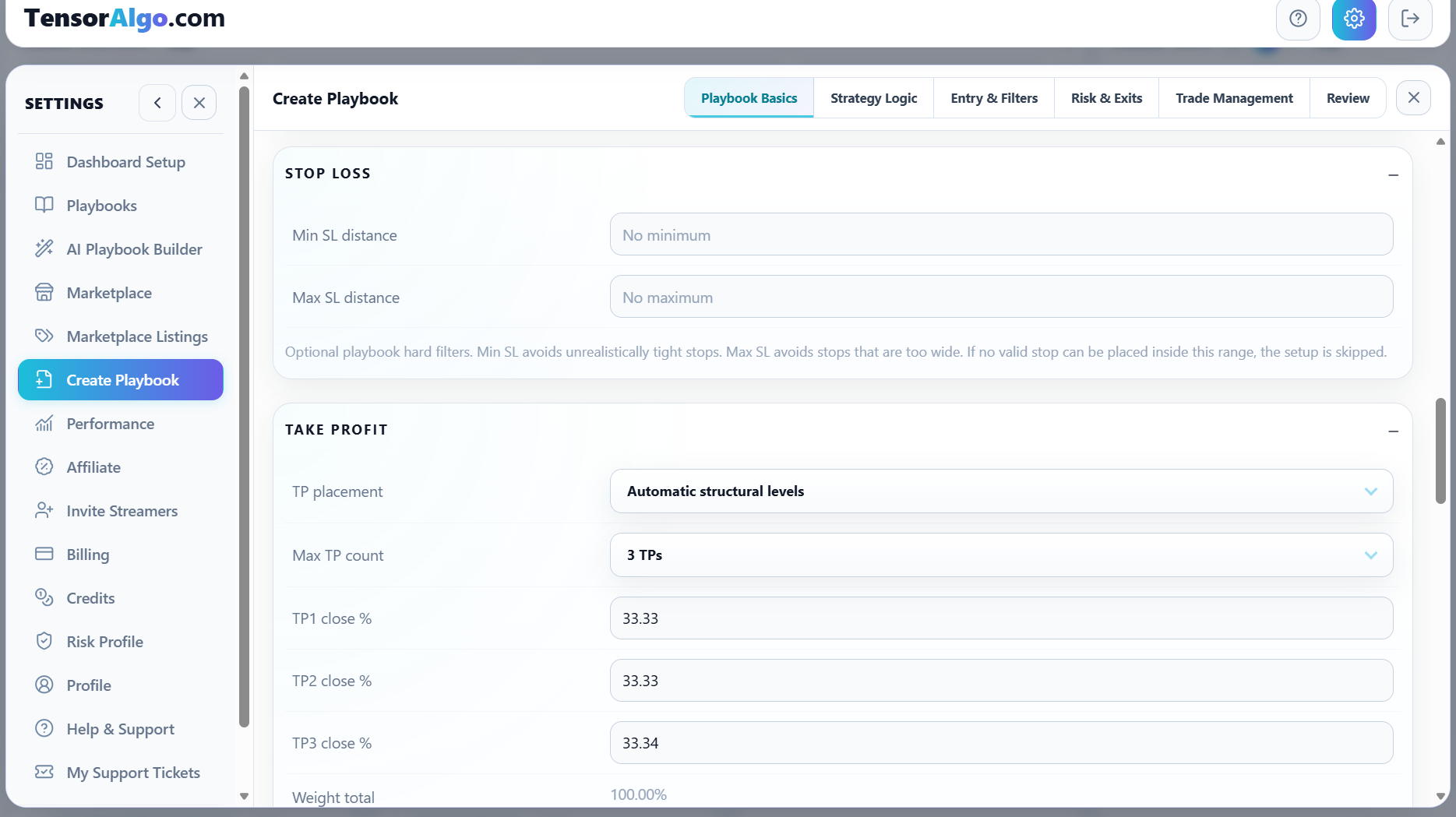
Depending on the configuration, you can review controls such as:
- minimum and maximum stop distance;
- automatic structural target placement;
- number of targets and close percentages;
- maximum target distances;
- preferred minimum risk/reward;
- low-R:R handling and minimum TP1 R handling.
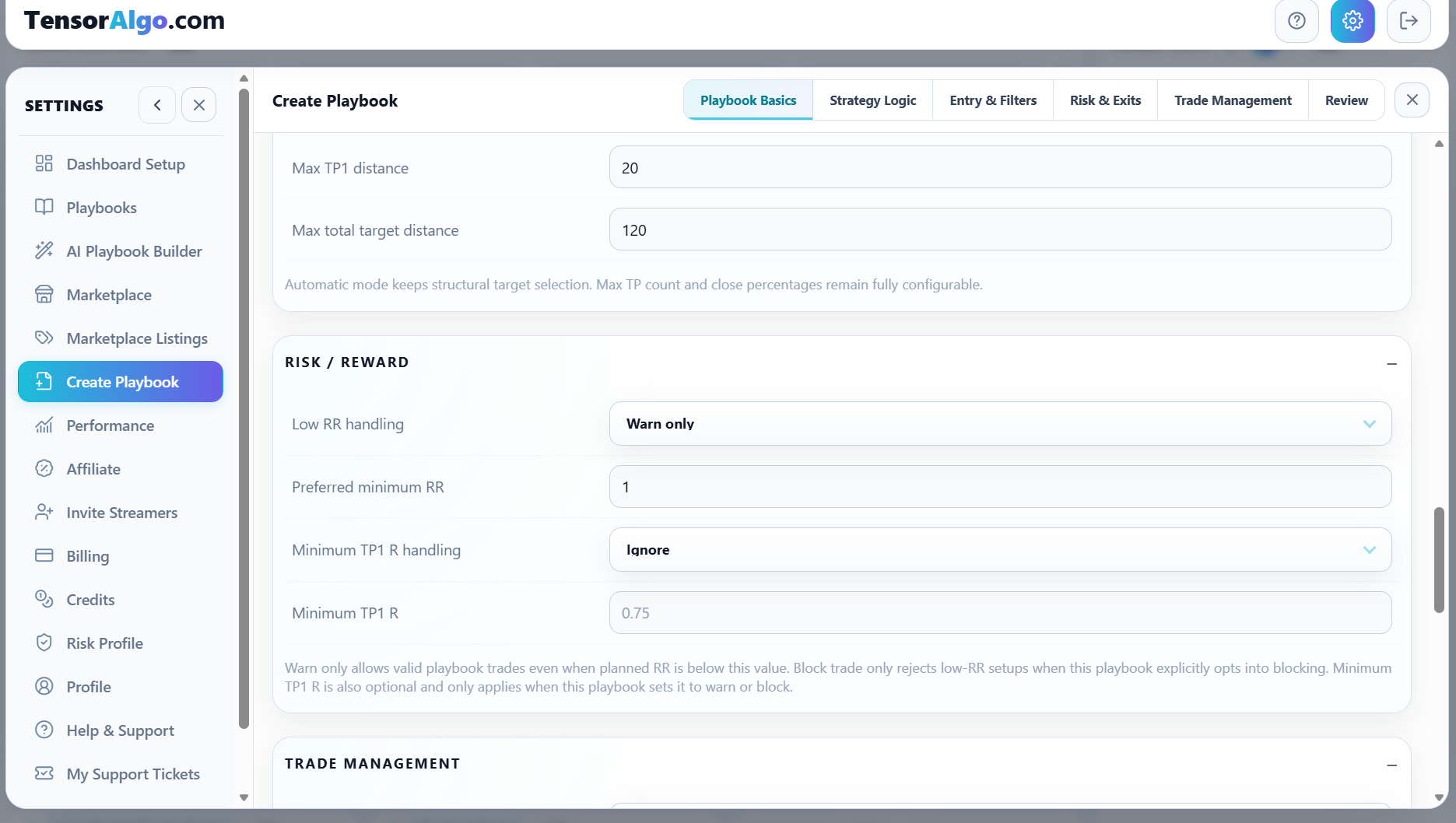
Use these settings to express the Playbook's plan—not to match a single historical trade. A rule that only fits one remembered outcome is harder to evaluate consistently later.
5. Trade Management
Trade Management lets you define supported behavior that applies after a plan is active, such as break-even or optional managed-stop rules when available.
These rules are separate from personal Risk Profile preferences. A Risk Profile can show compatibility warnings; it does not replace the Playbook's configured management rules.
Protect armed setups before entry
Use Armed Setup Protection when you want to control how long a valid armed setup may wait for entry and which pre-entry price events should retire it early. The Playbook can use a maximum wait plus optional stop/invalidation, TP1-first, toward-target, and away-from-entry retirement rules.
Supported strategy editors can inherit the Playbook protection or use a strategy-specific override. See Use Armed Setup Protection for the full lifecycle behavior.
Decide when the same factual setup may re-arm
For finite-entry strategies, Same setup re-arm controls when the same factual setup can receive a fresh quota cycle. The supported modes are After setup reset, After setup reset + minimum time, and After time only.
See Configure same-setup re-arm before changing these controls so setup reuse remains consistent with the strategy's factual level or zone.
6. Review the whole Playbook
The Review section brings the strategy and execution settings back together. Use it to answer two questions before saving:
- Does the strategy summary describe the setup I intended?
- Do the execution settings describe the trade plan I intended?
Builder checks surface missing or conflicting configuration that needs attention.
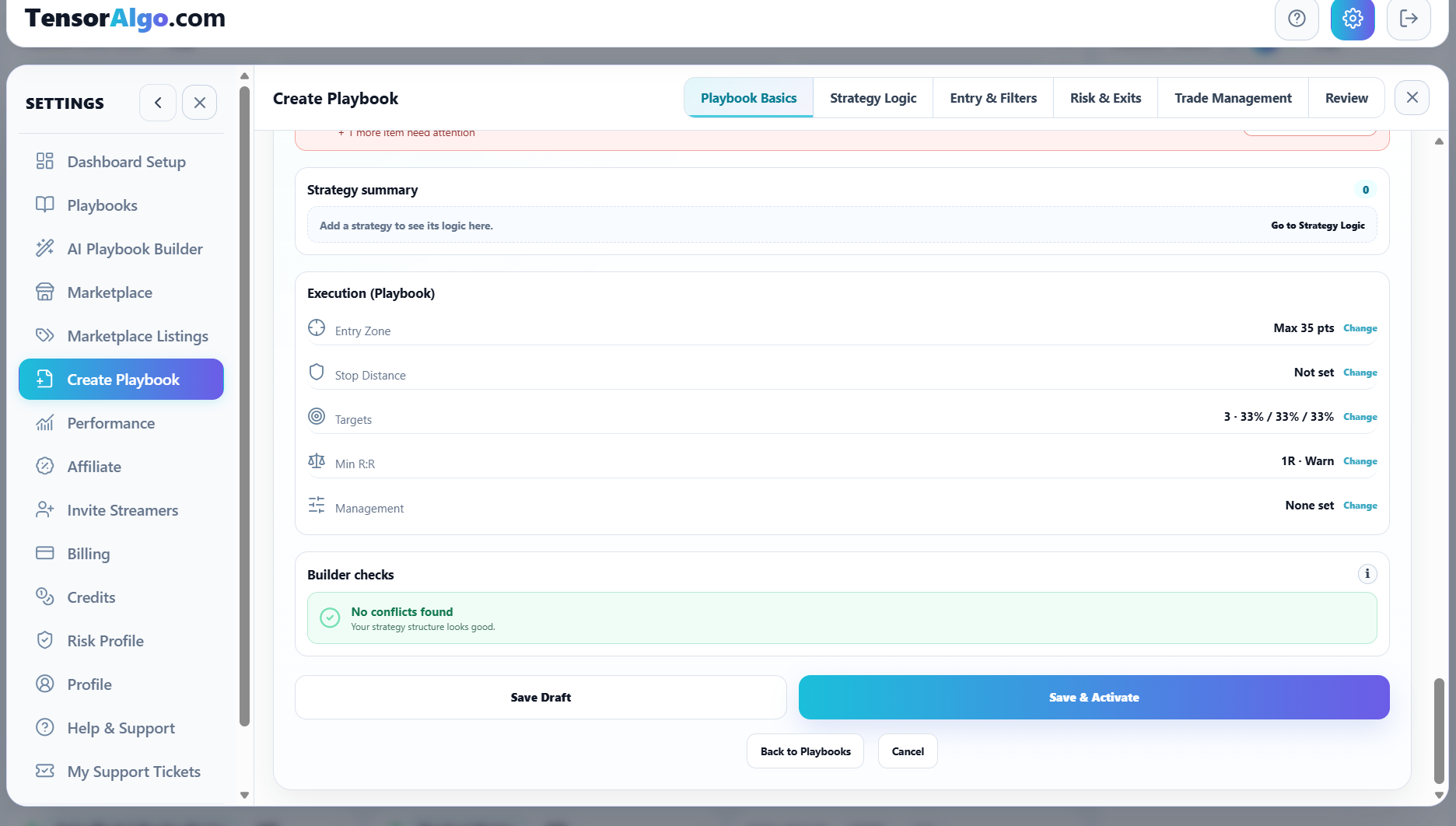
Save Draft or Save & Activate
Select Save Draft when you want to keep working on the Playbook later without activating it.
Select Save & Activate when the Playbook is ready and you want activation to proceed if validation and account capacity allow.
A completed review can show the strategy summary, entry zone, stop state, targets, minimum R:R handling, management state, and builder checks in one place.
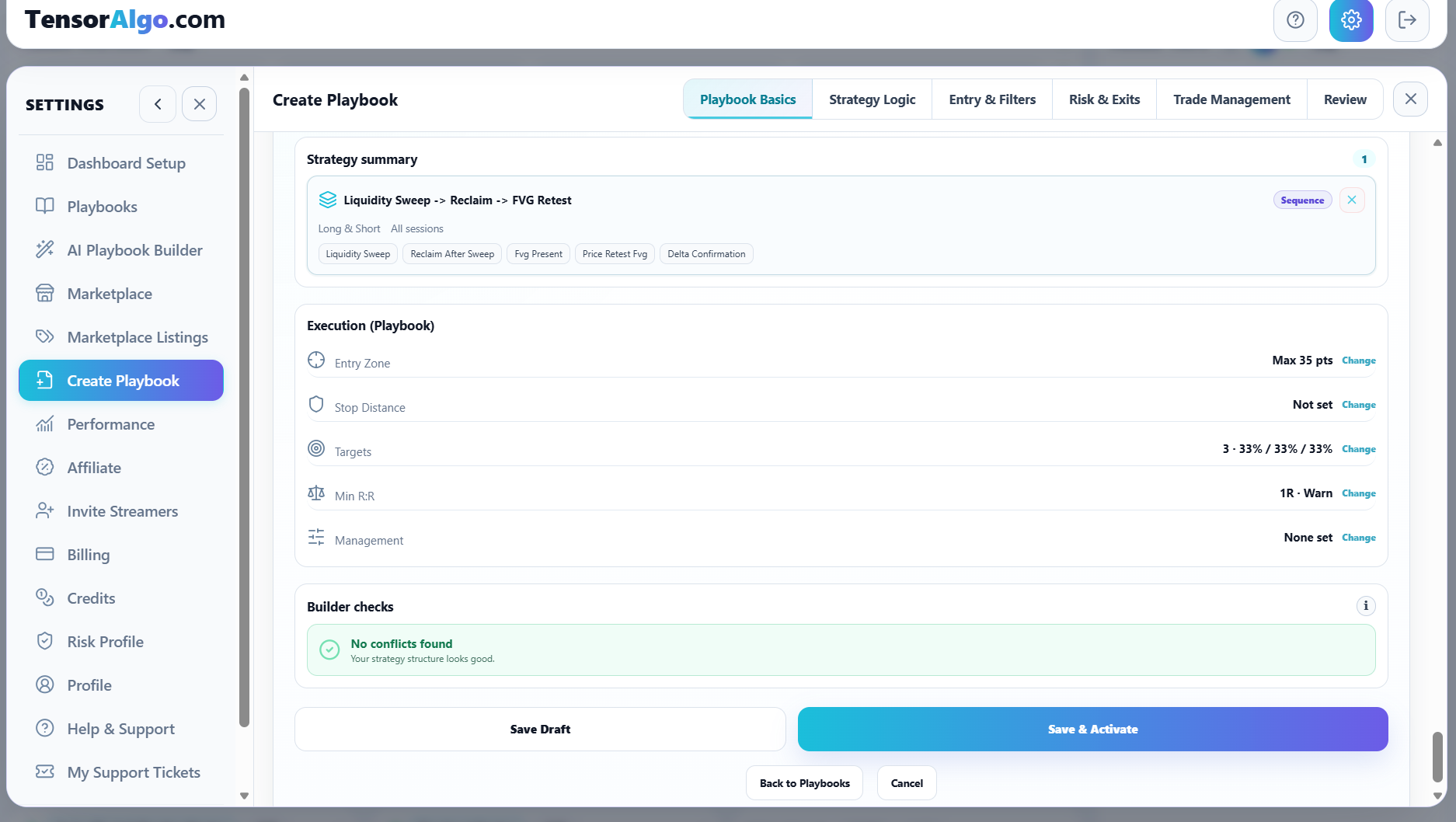
Refine with evidence instead of guesswork
After the Playbook is active, review its setup/trade history before making repeated changes. Trade History and Trade Intelligence Center can help you see whether a condition, session, strategy, or execution issue is actually recurring.
That is where manual control becomes most useful: you can return to a Playbook you own and adjust a specific part of the definition when the evidence supports it.
Troubleshooting the builder
If the Playbook cannot be saved or activated:
- start with the Review section and resolve any required item;
- confirm the Playbook has at least one valid supported strategy;
- check that target percentages and other dependent settings are valid;
- confirm the account still has saved/active Playbook and strategy capacity;
- keep the Playbook as a draft if the strategy is valid but you are not ready to activate it.
You do not need to rebuild the Playbook from scratch simply because activation is currently unavailable.