

Settings → Playbooks is the control center for the Playbooks already available to your account. It lets you decide which ideas stay saved for later, which are active now, which you want to edit, and how owned, rented, purchased, or system Playbooks should be managed.
A useful Playbook library is not the same as having every Playbook active. Keep the ideas you want to preserve, then activate the ones you actually want TensorAlgo to evaluate for the current workflow.
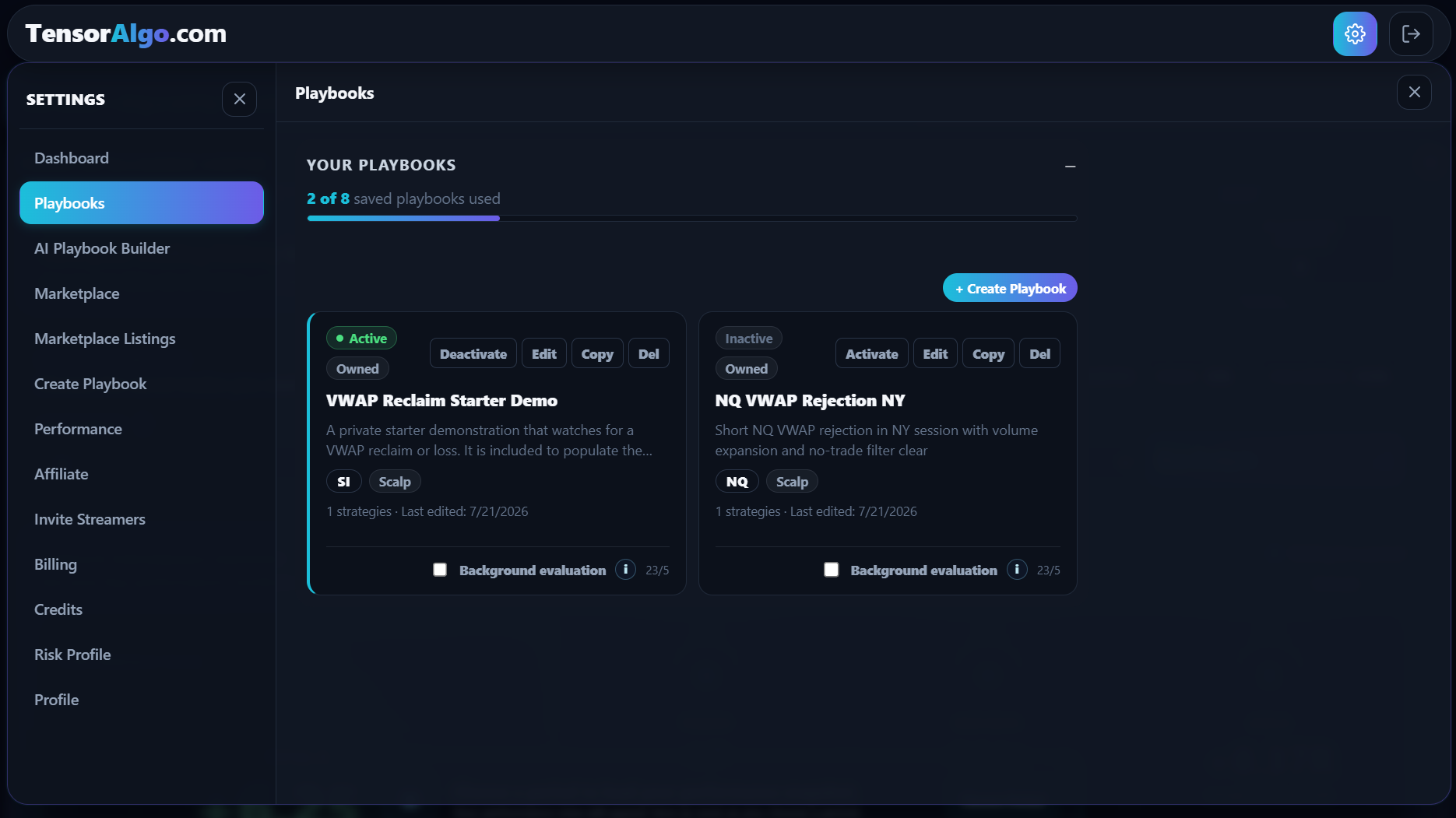
Understand saved versus active
A saved Playbook remains available in your account but does not have to participate in active evaluation.
An active Playbook participates in supported market evaluation and uses the account's active-Playbook and active-strategy capacity.
This separation is useful when you have several ideas but only want to monitor a focused group at a time.
Activate the Playbook you want to monitor
- Find the saved Playbook.
- Select Activate.
- Review any validation or capacity message.
- Resolve the specific issue if one is shown.
- Confirm that the Playbook appears as active.
Once active, the Playbook can participate in dashboard setup monitoring and lifecycle tracking. Historical evidence can then be tied back to that Playbook in Trade History and Trade Intelligence Center.
Deactivate without losing the Playbook
Select Deactivate when you want to stop new active evaluation but keep the Playbook available.
Deactivation does not delete the Playbook's historical records. It also does not cancel a Marketplace rental by itself.
This makes deactivation a useful way to rotate Playbooks: pause one workflow, free active capacity, and activate another without deleting the first Playbook.
Edit Playbooks you own
Select Edit when editing is available. This lets you return to the Playbook definition and refine the strategy or execution settings.
For example, after reviewing enough history you might adjust a supported filter, target rule, risk/reward preference, or management setting rather than creating a completely new Playbook.
AI Playbook Builder creates the first supported strategy for the generated Playbook. After saving, you can edit the Playbook and add more strategies when the current plan allows.
When editing an owned Playbook, also review lifecycle controls that can materially change how a valid setup behaves after it is detected:
- Armed Setup Protection controls how long an armed setup waits and which pre-entry events retire it.
- Same setup re-arm controls when a finite-entry strategy may reuse the same factual setup for a fresh quota cycle.
These controls do not replace the strategy's setup conditions. Use the dedicated Setup Protection and same-setup re-arm guides before changing them on an established Playbook.
Duplicate when you want a separate experiment
Select Duplicate when copying is permitted and you want to preserve the original while testing another owned version.
A duplicate is a new saved Playbook and therefore counts toward the saved-Playbook limit.
This is often cleaner than repeatedly changing one Playbook back and forth when you want to compare two meaningfully different versions.
Know the ownership type
Available actions depend on where the Playbook came from. A Playbook can be shown as owned, rented, purchased, or system/default.
- Owned Playbooks can generally be edited and managed according to account limits.
- Rented Playbooks stay linked to the rental and can restrict access to protected strategy details.
- Purchased Marketplace Playbooks provide the purchased access while keeping protected creator strategy details private.
- System/default Playbooks can have product-specific management behavior.
Protected Marketplace logic is intentionally not disclosed to renters, buyers, or public support.
Control alerts and background monitoring for each Playbook
Each Playbook card in Settings → Playbooks also exposes two separate monitoring controls:
- Alerts — allows that Playbook to send the lifecycle events selected in Settings → Trade Alerts.
- Background evaluation — keeps an eligible Playbook evaluating while TensorAlgo is closed.
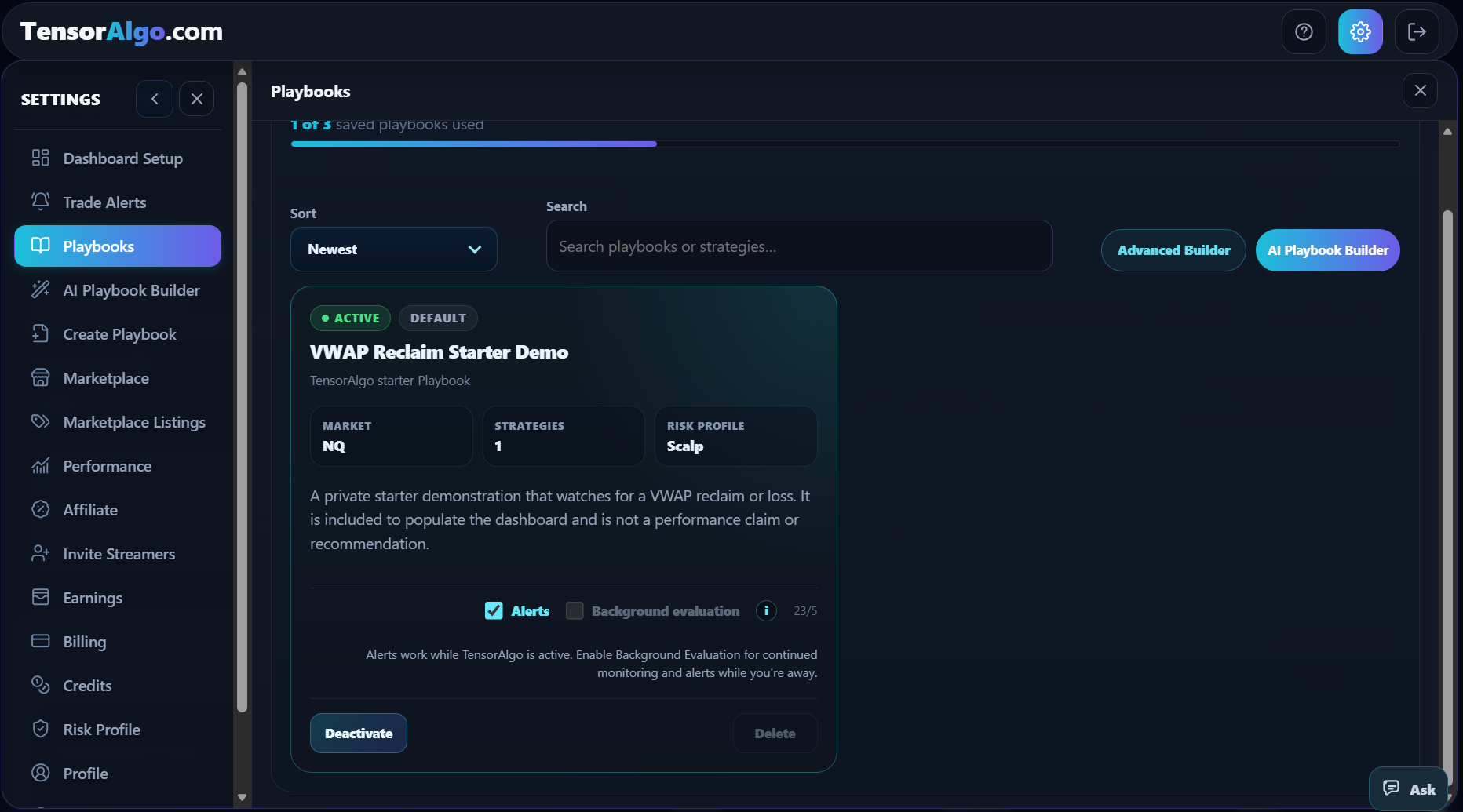
Turning Alerts off for one Playbook does not change the lifecycle-event choices for your other alert-enabled Playbooks. Turning Background Evaluation off does not automatically turn Alerts off; it only changes whether eligible evaluation continues while you are away.
The same Alerts and Background evaluation controls are also available on the Playbook card in the main dashboard. See Use Trade Alerts for browser delivery, Web Push, sound, and away-alert behavior.
Manage a rental separately from activation
For a rented Playbook, Deactivate and end/cancel the rental renewal are different actions.
Deactivation stops active evaluation. Rental management controls whether the Marketplace access continues according to the payment method and current rental state. Use Settings → Billing → Rented Playbooks or the available rental-management action for the commercial rental state.
Delete only when you no longer need the saved item
Use the delete action when you actually want the Playbook removed from your account. The behavior can differ by source.
For rented Playbooks, removal can also affect the local rental state or renewal treatment. Review the action presented in the product before confirming it.
If your goal is simply to stop monitoring the strategy, Deactivate is usually the more appropriate action.
Use the library as part of your review process
A practical routine is:
- keep a small set of clearly named Playbooks;
- activate only the ones relevant to the current trading focus;
- review their evidence in Trade History and Trade Intelligence Center;
- edit or duplicate owned Playbooks when the evidence supports a meaningful change;
- deactivate weaker or temporarily irrelevant Playbooks instead of deleting history impulsively.
When you cannot save or activate another Playbook
Do not delete a Playbook immediately just because an action is blocked. First identify which limit or validation rule is involved.
Common causes are:
- the saved-Playbook limit is full;
- the active-Playbook limit is full;
- the maximum active-strategy limit is full;
- the Playbook has an incomplete or invalid configuration;
- the account's trading access is currently paused.
If you only need active capacity, deactivating another Playbook can be enough. If saved capacity is full, decide which saved Playbook you genuinely no longer need before deleting it.