
Your starter dashboard is the place where TensorAlgo's Playbooks, market context, current setup activity, and saved history come together during a session.
Onboarding gives you a first layout. Dashboard Setup lets you turn that starting point into a workspace that matches the markets and information you actually use.
Start with the cards you actually need
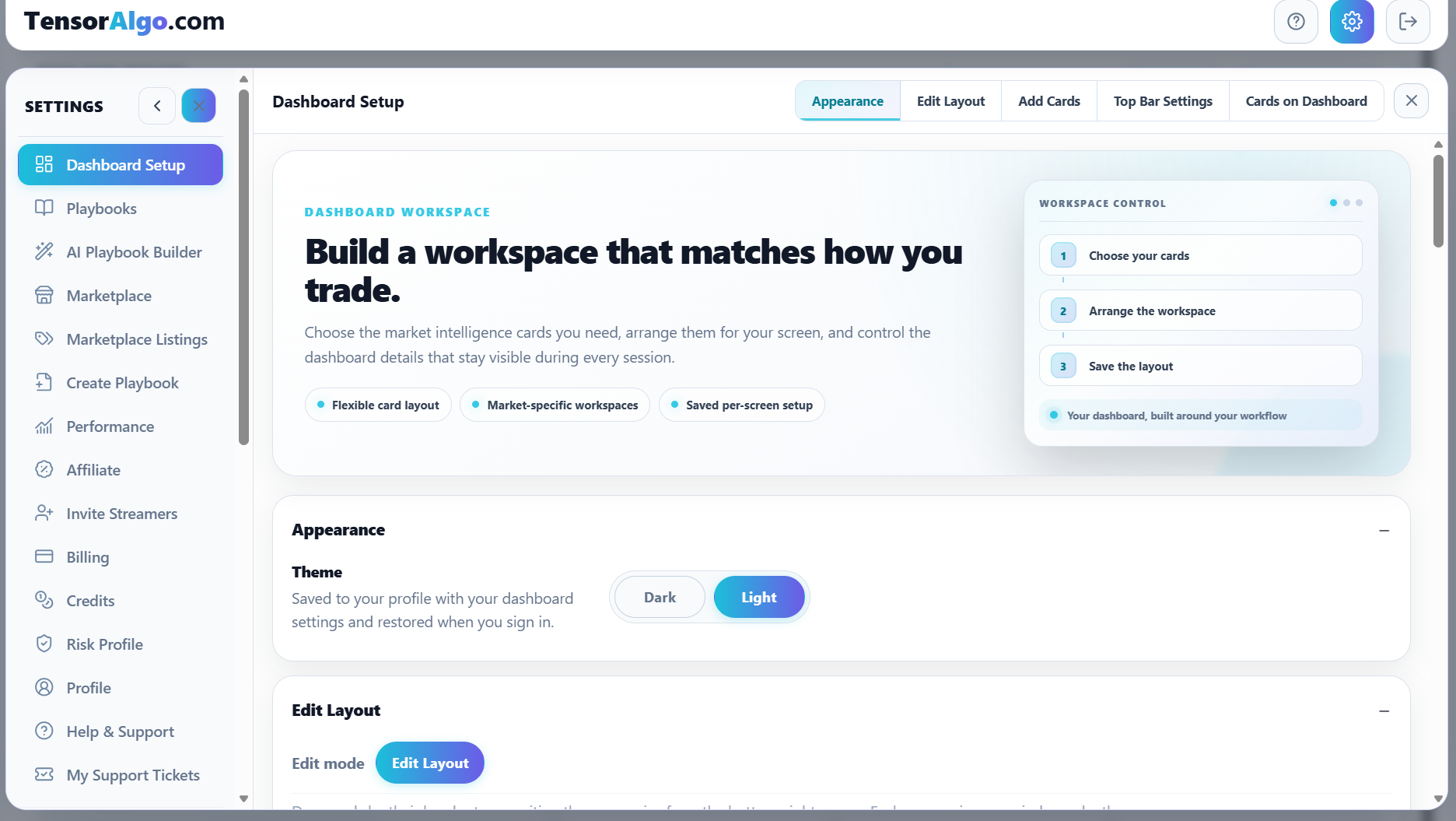
Open Settings → Dashboard Setup. The workspace is organized so you can manage appearance, edit the layout, add cards, configure top-bar settings, and review which cards are already on the dashboard.
For a first setup, keep the dashboard focused. A useful starting combination can include:
- the Playbook card for the strategy you are learning;
- Trade Tape for current plan/lifecycle activity;
- Trade History for recorded evidence;
- the relevant GEX/OI or Crypto Gamma card when that context is available for the selected market.
You can add more later. A smaller workspace is often easier to understand while you are learning how the pieces connect.
Choose the market or group first
When adding cards, select the symbol or market group you want the card to represent.
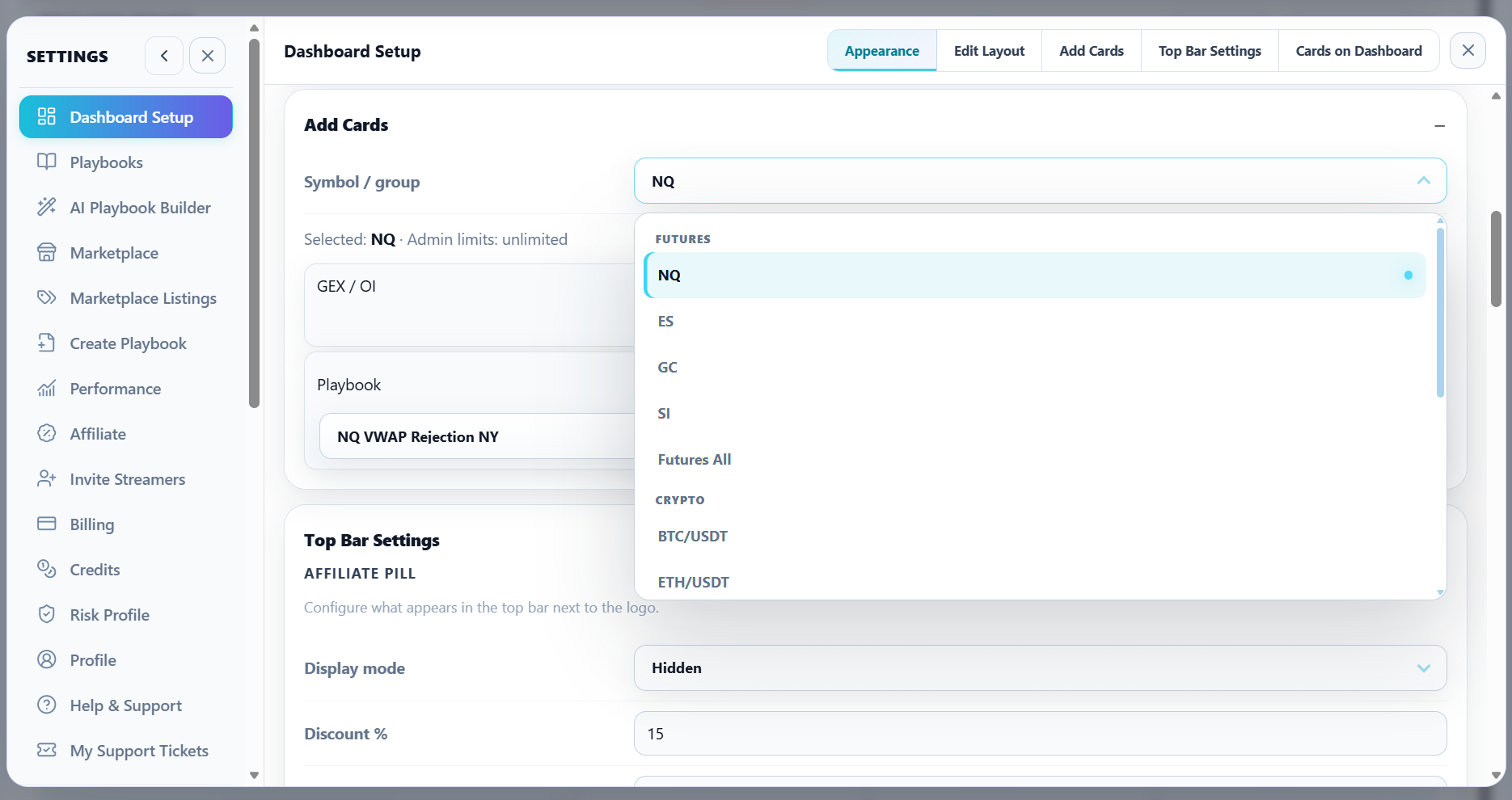
The available choices reflect the supported markets and the account's current limits. Market groups can be useful for broader monitoring, while an individual instrument keeps the card focused on one market.
Add the Playbook card you want to follow
After selecting the relevant market, choose the Playbook you want the dashboard to show and use Add when the card is available.
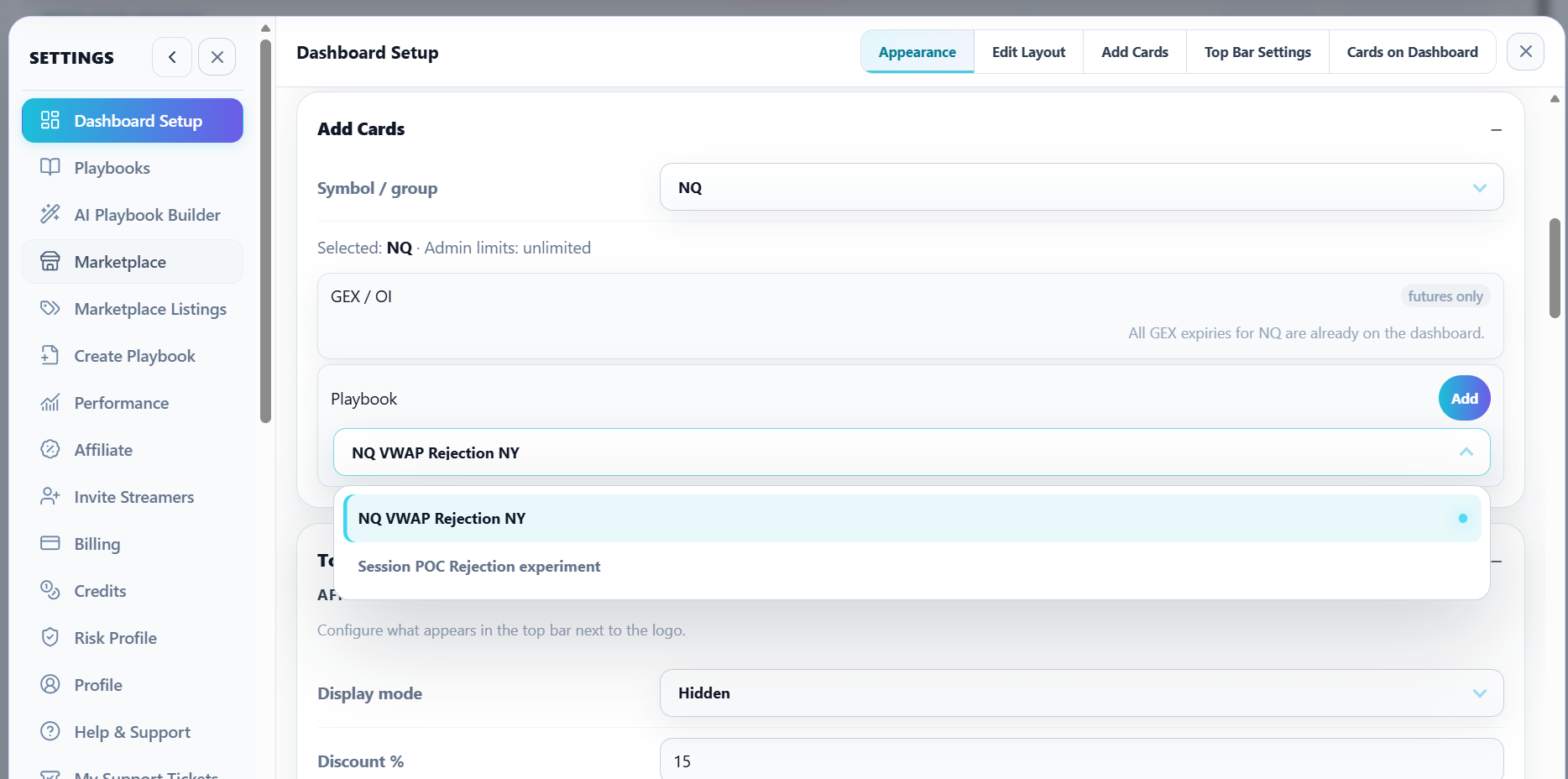
A Playbook card is especially useful for a first workflow because it keeps the strategy-specific state visible beside broader tools such as Trade Tape and Trade History.
Arrange the workspace for your screen
Use Edit Layout to position cards where they are easiest to use during a session. TensorAlgo can preserve the configured dashboard setup for the screen/workspace so you do not need to rebuild the layout every time you sign in.
A practical arrangement is:
- put the primary Playbook/market card where you naturally look first;
- keep current lifecycle information nearby;
- keep Trade History accessible for quick review;
- place slower-review tools where they do not compete with the main session view.
There is no single correct layout—the purpose of Dashboard Setup is to let the workspace reflect your own process.
Choose the appearance you prefer
Dashboard Setup also includes the dashboard theme control. Your dashboard appearance is saved with your profile and restored when you sign in.
The public Profile page has its own separate appearance setting, so changing the trading dashboard does not force visitors to see the same theme.
Know when a card cannot be added
A card can be unavailable because:
- the current plan has reached the relevant card or streamed-symbol limit;
- the card applies only to a supported market type;
- all eligible instances for that market are already on the dashboard;
- the Playbook or feature needed by the card is not available to the account.
The Add Cards area can show the current selection and account limit context so you can understand why an action is unavailable without deleting unrelated cards first.
A good first-dashboard workflow
After the layout is ready:
- activate the Playbook you want to monitor;
- return to the dashboard;
- watch the Playbook card and Trade Tape for current setup/lifecycle state;
- use Trade History to see what becomes recorded;
- later, use Trade Intelligence Center to review the larger evidence set.
That sequence makes the dashboard more than a collection of widgets—it becomes the live stage of the same Plan → Monitor → Review workflow used across TensorAlgo.